

Requirements
- You’ve created a Runpod account.
- You’ve installed Python 3.10 or higher and Docker on your local machine and configured them for your command line.
Step 1: Create project files
Create a new directory with empty files for your project:Step 2: Install the Serverless SDK
Create a virtual environment and install the Serverless SDKStep 3: Create a handler function
Add the following code tohandler.py:
handler.py
prompt string contained in the input object.
Step 4: Create a test input file
Add the following code totest_input.json to properly test your handler locally:
test_input.json
Step 5: Test your handler function locally
Run your handler function using your local terminal:Step 6: Create a Dockerfile
Add the following content toDockerfile:
Dockerfile
Step 7: Build and push your worker image
Before you can deploy your worker on Runpod Serverless, you need to push it to Docker Hub:1
Build your Docker image
Build your Docker image, specifying the platform for Runpod deployment, replacing
[YOUR_USERNAME] with your Docker username:2
Push the image to your container registry
Step 8: Deploy your worker using the Runpod console
To deploy your worker to a Serverless endpoint:- Go to the Serverless section of the Runpod console.
- Click New Endpoint.
- Click Import from Docker Registry
- In the Container Image field, enter your Docker image URL:
docker.io/yourusername/serverless-test:latest. - Click Next to proceed to endpoint configuration.
- Configure your endpoint settings:
- (Optional) Enter a custom name for your endpoint, or use the randomly generated name.
- Make sure the Endpoint Type is set to Queue.
- Under GPU Configuration, check the box for 16 GB GPUs.
- Leave the rest of the settings at their defaults.
- Click Deploy Endpoint.
Step 9: Test your endpoint
To test your endpoint, click the Requests tab in the endpoint detail page: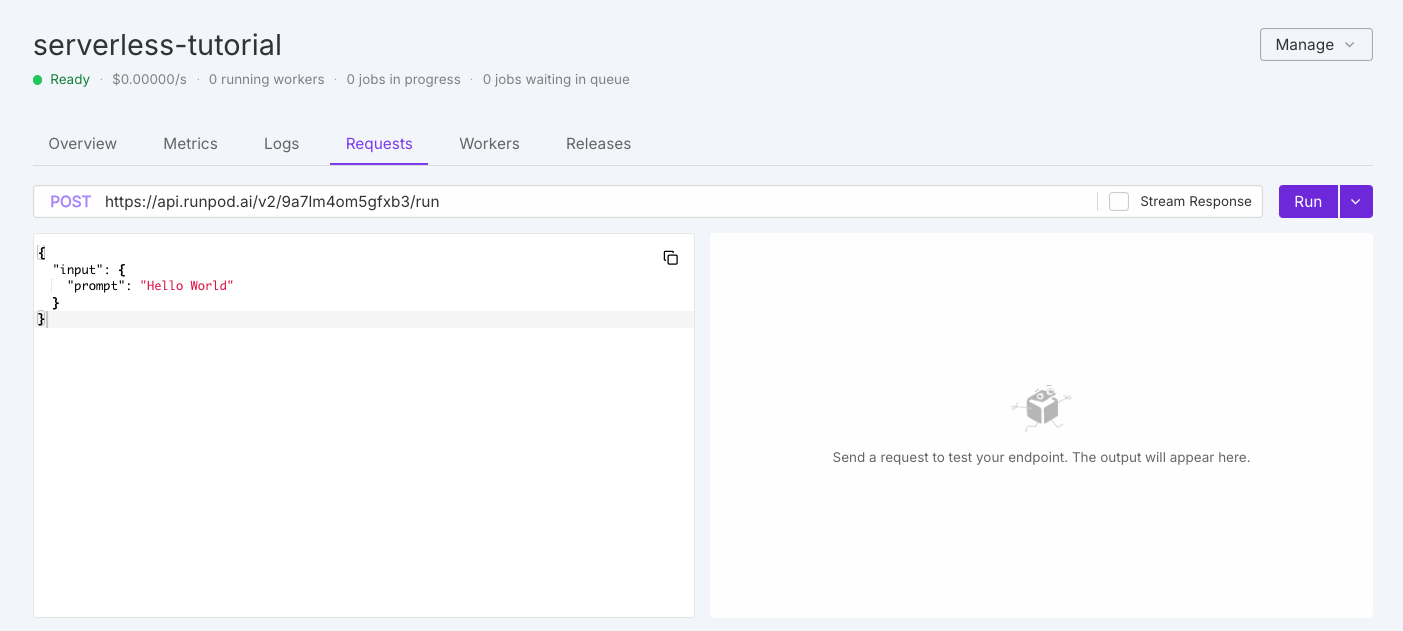
Congratulations! You’ve successfully deployed and tested your first Serverless endpoint.
Next steps
Handler functions
Create more advanced handler functions.
Create a Dockerfile
Add AI/ML models and other dependencies to your worker.
Send requests
Learn how to structure and send requests to your endpoint.
Manage endpoints
Configure and manage your Serverless endpoints.