This guide covers all the ways to interact with Public Endpoints, from testing in the browser to integrating with your applications.
Requirements
Use the playground
The Public Endpoint playground lets you test models directly in your browser before writing any code.
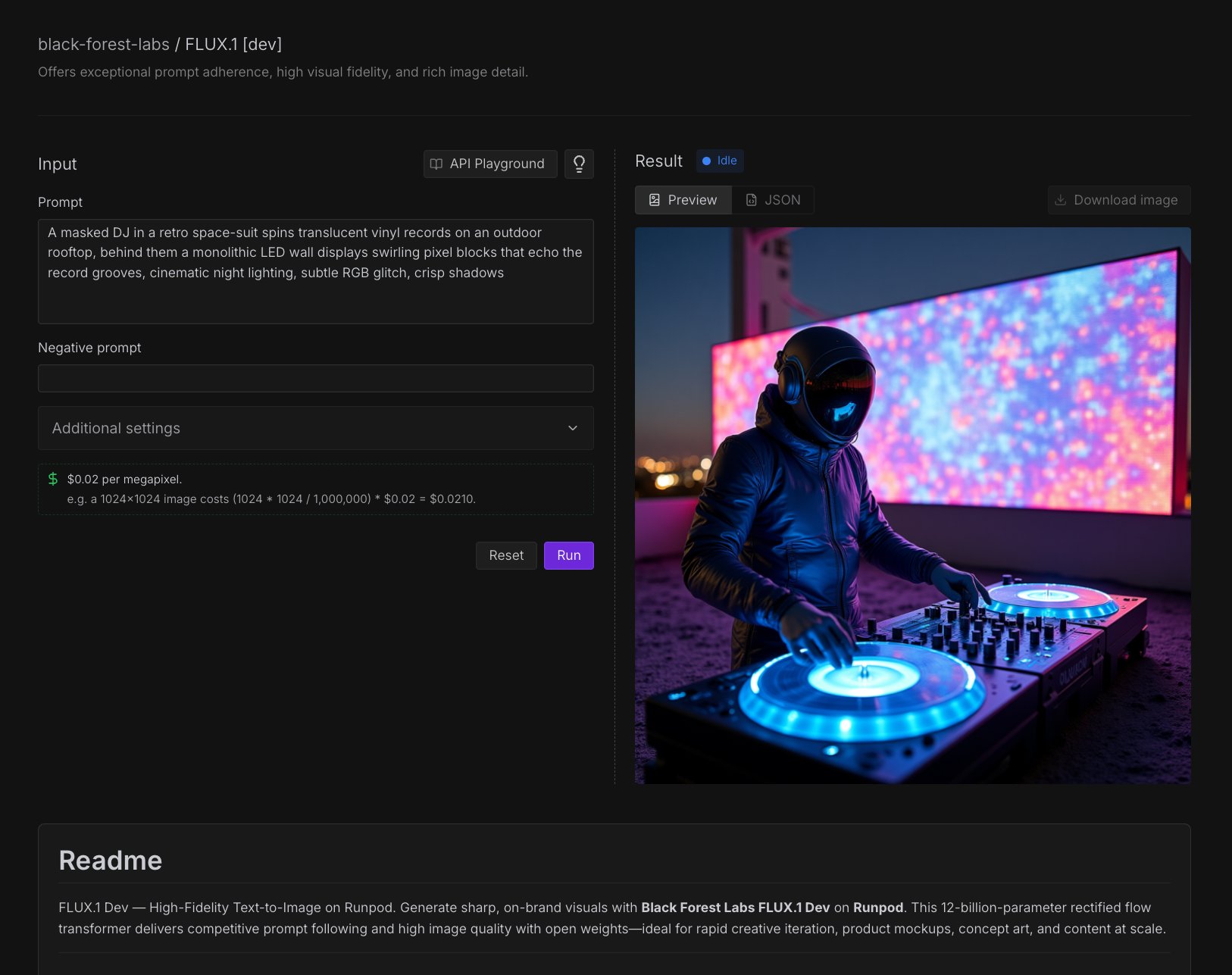
The playground offers:
- Interactive parameter adjustment: Modify prompts, dimensions, and model settings in real-time.
- Instant preview: Generate images directly in the browser.
- Cost estimation: See estimated costs before running generation.
- API code generation: Create working code examples for your applications.
Access the playground
- Navigate to the Runpod Hub in the console.
- Select the Public Endpoints section.
- Browse the available models and select one that fits your needs.
Test a model
- Select a model from the Runpod Hub.
- Under Input, enter a prompt in the text box.
- Enter a negative prompt if needed. Negative prompts tell the model what to exclude from the output.
- Under Additional settings, you can adjust the seed, aspect ratio, number of inference steps, guidance scale, and output format.
- Click Run to start generating.
Under Result, you can use the dropdown menu to show either a preview of the output, or the raw JSON.
Generate code from the playground
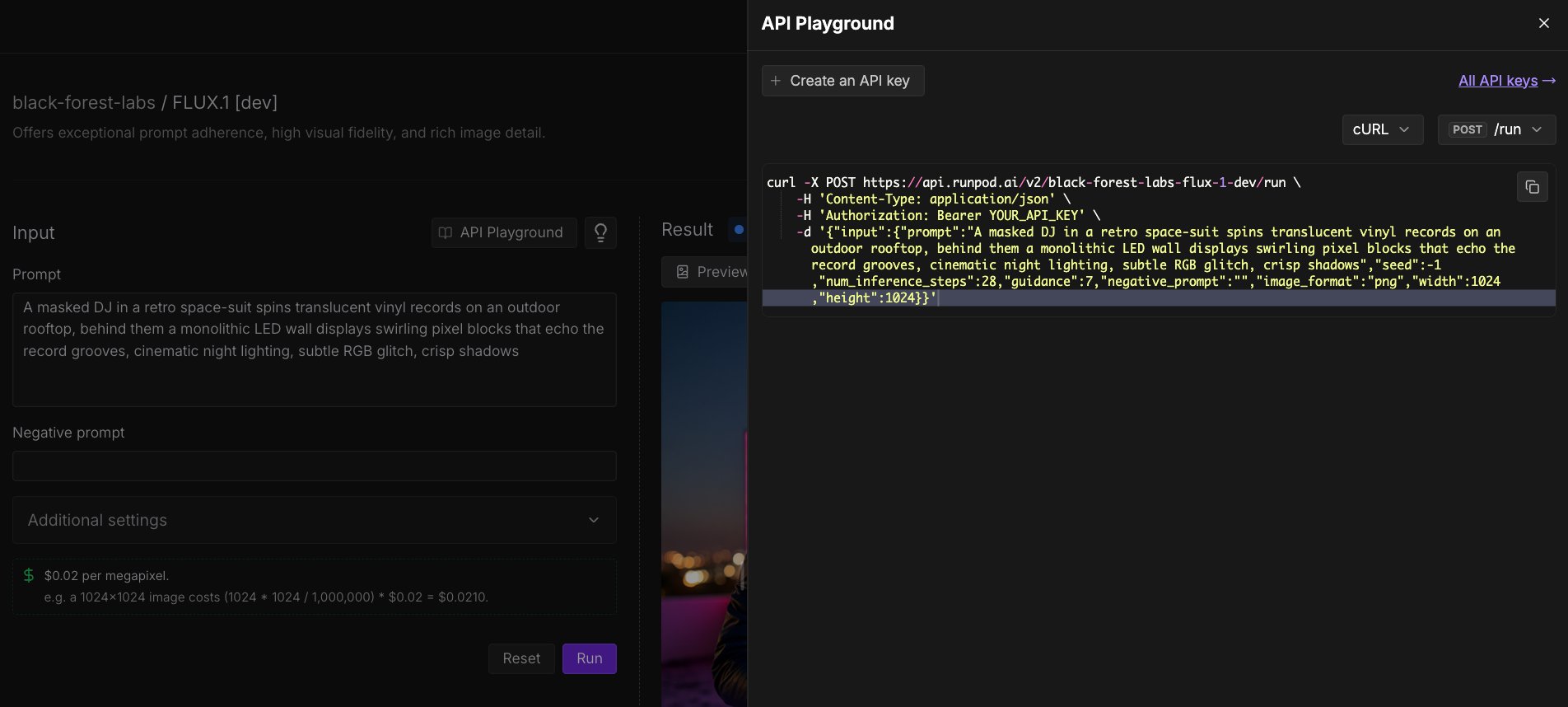
After testing a model in the playground, you can automatically generate an API request to use in your application.
- Click API (above the Prompt field).
- Using the dropdown menus on the right, select the programming language (Python, JavaScript, cURL, etc.) and POST command you want to use (
/run or /runsync).
- Click the Copy icon to copy the code to your clipboard.
Make API requests
You can make API requests to Public Endpoints using any HTTP client. All requests require authentication using your Runpod API key, passed in the Authorization header.
Synchronous requests
Synchronous requests (/runsync) wait for the model to finish processing and return the result directly. Use these for quick generations where you want an immediate response.
curl -X POST "https://api.runpod.ai/v2/black-forest-labs-flux-1-dev/runsync" \
-H "Authorization: Bearer YOUR_API_KEY" \
-H "Content-Type: application/json" \
-d '{
"input": {
"prompt": "A serene mountain landscape at sunset",
"width": 1024,
"height": 1024,
"num_inference_steps": 20,
"guidance": 7.5
}
}'
import requests
response = requests.post(
"https://api.runpod.ai/v2/black-forest-labs-flux-1-dev/runsync",
headers={
"Authorization": "Bearer YOUR_API_KEY",
"Content-Type": "application/json",
},
json={
"input": {
"prompt": "A serene mountain landscape at sunset",
"width": 1024,
"height": 1024,
"num_inference_steps": 20,
"guidance": 7.5,
}
},
)
result = response.json()
print(result["output"]["image_url"])
async function generateImage() {
const response = await fetch(
"https://api.runpod.ai/v2/black-forest-labs-flux-1-dev/runsync",
{
method: "POST",
headers: {
"Authorization": "Bearer YOUR_API_KEY",
"Content-Type": "application/json",
},
body: JSON.stringify({
input: {
prompt: "A serene mountain landscape at sunset",
width: 1024,
height: 1024,
num_inference_steps: 20,
guidance: 7.5,
},
}),
}
);
const result = await response.json();
console.log(result.output.image_url);
return result;
}
generateImage();
Asynchronous requests
Asynchronous requests (/run) return immediately with a job ID. Use these for longer generations or when you want to queue multiple requests.
curl -X POST "https://api.runpod.ai/v2/black-forest-labs-flux-1-dev/run" \
-H "Authorization: Bearer YOUR_API_KEY" \
-H "Content-Type: application/json" \
-d '{
"input": {
"prompt": "A futuristic cityscape with flying cars",
"width": 1024,
"height": 1024,
"num_inference_steps": 50,
"guidance": 8.0
}
}'
import requests
response = requests.post(
"https://api.runpod.ai/v2/black-forest-labs-flux-1-dev/run",
headers={
"Authorization": "Bearer YOUR_API_KEY",
"Content-Type": "application/json",
},
json={
"input": {
"prompt": "A futuristic cityscape with flying cars",
"width": 1024,
"height": 1024,
"num_inference_steps": 50,
"guidance": 8.0,
}
},
)
result = response.json()
job_id = result["id"]
print(f"Job submitted: {job_id}")
async function submitJob() {
const response = await fetch(
"https://api.runpod.ai/v2/black-forest-labs-flux-1-dev/run",
{
method: "POST",
headers: {
"Authorization": "Bearer YOUR_API_KEY",
"Content-Type": "application/json",
},
body: JSON.stringify({
input: {
prompt: "A futuristic cityscape with flying cars",
width: 1024,
height: 1024,
num_inference_steps: 50,
guidance: 8.0,
},
}),
}
);
const result = await response.json();
console.log(`Job submitted: ${result.id}`);
return result;
}
submitJob();
Check job status
After submitting an asynchronous request, use the /status endpoint to check progress and retrieve results. Replace {job-id} with the job ID returned from the /run request.
curl -X GET "https://api.runpod.ai/v2/black-forest-labs-flux-1-dev/status/{job-id}" \
-H "Authorization: Bearer YOUR_API_KEY"
import requests
import time
job_id = "your-job-id"
while True:
response = requests.get(
f"https://api.runpod.ai/v2/black-forest-labs-flux-1-dev/status/{job_id}",
headers={"Authorization": "Bearer YOUR_API_KEY"},
)
result = response.json()
status = result["status"]
if status == "COMPLETED":
print(result["output"]["image_url"])
break
elif status == "FAILED":
print(f"Job failed: {result}")
break
else:
print(f"Status: {status}, waiting...")
time.sleep(2)
async function checkStatus(jobId) {
while (true) {
const response = await fetch(
`https://api.runpod.ai/v2/black-forest-labs-flux-1-dev/status/${jobId}`,
{
headers: {
"Authorization": "Bearer YOUR_API_KEY",
},
}
);
const result = await response.json();
if (result.status === "COMPLETED") {
console.log(result.output.image_url);
return result;
} else if (result.status === "FAILED") {
throw new Error(`Job failed: ${JSON.stringify(result)}`);
}
console.log(`Status: ${result.status}, waiting...`);
await new Promise((resolve) => setTimeout(resolve, 2000));
}
}
checkStatus("your-job-id");
All endpoints return a consistent JSON response format:
{
"delayTime": 17,
"executionTime": 3986,
"id": "sync-0965434e-ff63-4a1c-a9f9-5b705f66e176-u2",
"output": {
"cost": 0.02097152,
"image_url": "https://image.runpod.ai/..."
},
"status": "COMPLETED",
"workerId": "oqk7ao1uomckye"
}
Output URLs (image_url, video_url, and audio_url) expire after 7 days. Download and store your generated files immediately if you need to keep them longer.
Vercel AI SDK
For JavaScript and TypeScript projects, you can use the @runpod/ai-sdk-provider package to integrate Public Endpoints with the Vercel AI SDK. This provides a streamlined, type-safe interface for text generation, streaming, and image generation.
See the Vercel AI SDK guide for installation, configuration, and usage examples.
Best practices
Prompt engineering
- Be specific: Detailed prompts generally produce better results.
- Include style modifiers: Specify art styles, camera angles, or lighting conditions.
A good prompt example: “A professional portrait of a woman in business attire, studio lighting, high quality, detailed, corporate headshot style.”
- Choose the right model: Use smaller, cheaper models (e.g. Flux Schnell) for testing and development, and more powerful models (e.g. Flux Dev) for production.
- Batch with async: For multiple images, use
/run to queue requests.
- Cache results: Store generated images to avoid regenerating identical prompts.
Next steps