> ## Documentation Index
> Fetch the complete documentation index at: https://docs.runpod.io/llms.txt
> Use this file to discover all available pages before exploring further.
# Deploy vLLM on Runpod Serverless
> Create a Serverless endpoint to serve LLM inference via API request.
## Requirements
* [Runpod account](/get-started/manage-accounts).
* [Runpod API key](/get-started/api-keys).
* (For gated models) [Hugging Face access token](https://huggingface.co/docs/hub/en/security-tokens).
## Step 1: Choose a model
First, decide which LLM you want to deploy. The vLLM worker supports most models available on Hugging Face, including:
* Llama 3 (e.g., `meta-llama/Llama-3.2-3B-Instruct`).
* Mistral (e.g., `mistralai/Ministral-8B-Instruct-2410`).
* Qwen3 (e.g., `Qwen/Qwen3-8B`).
* OpenChat (e.g., `openchat/openchat-3.5-0106`).
* Gemma (e.g., `google/gemma-3-1b-it`).
* DeepSeek-R1 (e.g., `deepseek-ai/DeepSeek-R1-Distill-Qwen-7B`).
* Phi-4 (e.g., `microsoft/Phi-4-mini-instruct`).
For this tutorial, we'll use `openchat/openchat-3.5-0106`, but you can substitute this with [any compatible model](https://docs.vllm.ai/en/latest/models/supported_models.html).
Depending on the model you choose, you may need to [configure your endpoint](/serverless/vllm/configuration) with additional environment variables.
## Step 2: Deploy using the Runpod UI
The easiest way to deploy a vLLM worker is through Runpod's ready-to-deploy repos:
1. Find the [vLLM repo](https://console.runpod.io/hub/runpod-workers/worker-vllm) in the Runpod Hub.
2. Click **Deploy**, using the latest vLLM worker version.
3. In the **Model** field, end the model name: `openchat/openchat-3.5-0106`.
4. Click **Advanced** to expand the vLLM settings.
5. Set **Max Model Length** to `8192` (or an appropriate context length for your model).
6. Leave other settings at their defaults unless you have specific requirements, then click **Next**.
7. Click **Create Endpoint**
Your endpoint will now begin initializing. This may take several minutes while Runpod provisions resources and downloads the selected model.
For more details on how to optimize your endpoint, see [Endpoint configurations](/serverless/endpoints/endpoint-configurations).
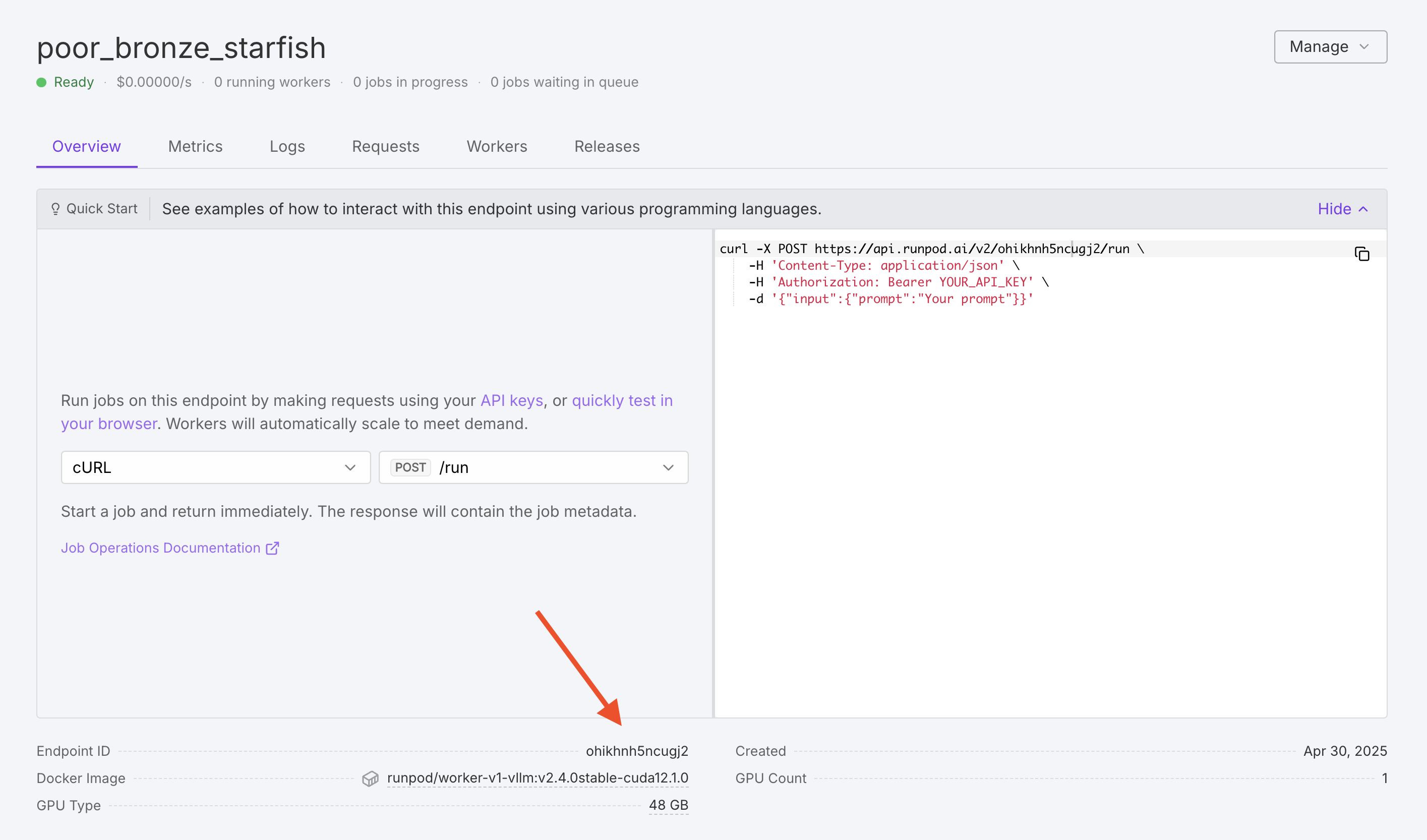
## Step 3: Find your endpoint ID
Once deployment is complete, make a note of your **Endpoint ID**, as you'll need this to make API requests.
 ## Step 4: Send a test request using the UI
To test your worker, click the **Requests** tab in the endpoint detail page:
## Step 4: Send a test request using the UI
To test your worker, click the **Requests** tab in the endpoint detail page:
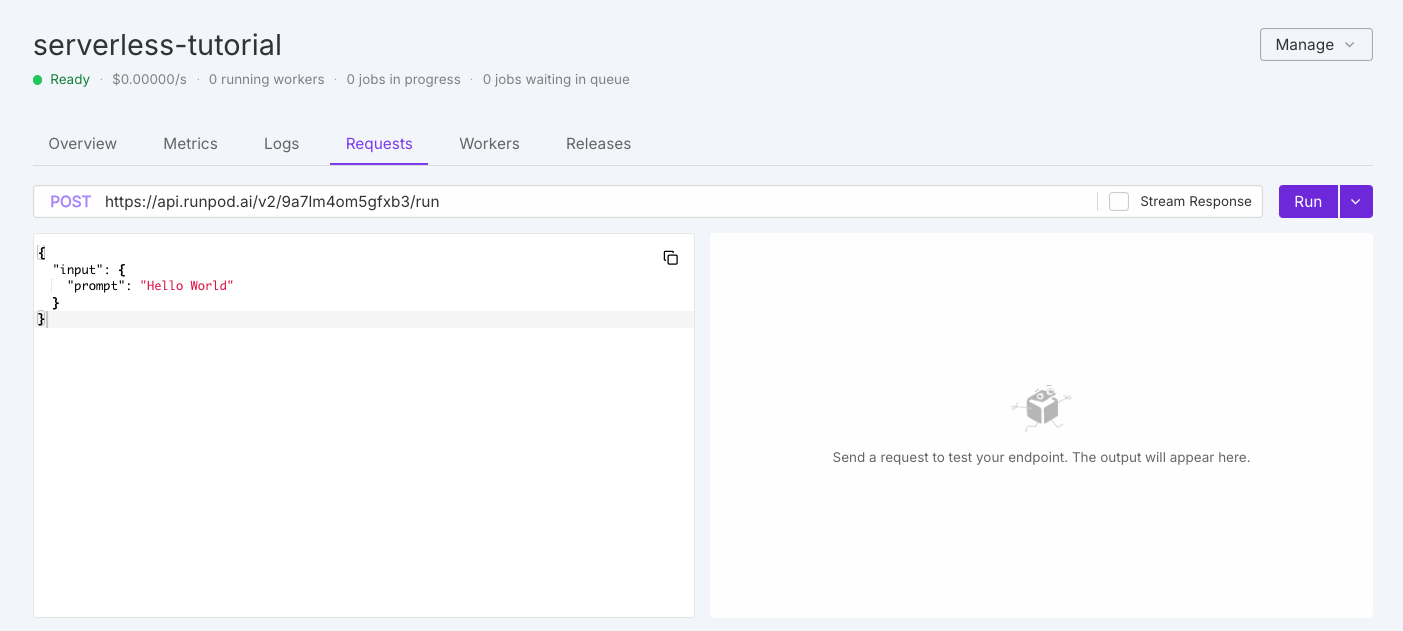 On the left you should see the default test request:
```json theme={"theme":{"light":"github-light","dark":"github-dark"}}
{
"input": {
"prompt": "Hello World"
}
}
```
Leave the default input as is and click **Run**. The system will take a few minutes to initialize your workers.
When the workers finish processing your request, you should see output on the right side of the page similar to this:
```json theme={"theme":{"light":"github-light","dark":"github-dark"}}
{
"delayTime": 638,
"executionTime": 3344,
"id": "f0706ead-c5ec-4689-937c-e21d5fbbca47-u1",
"output": [
{
"choices": [
{
"tokens": ["CHAT_RESPONSE"]
}
],
"usage": {
"input": 3,
"output": 100
}
}
],
"status": "COMPLETED",
"workerId": "0e7o8fgmm9xgty"
}
```
## Step 5: Send a test request using the API
To send a test request using the API, use the following command, replacing `YOUR_ENDPOINT_ID` and `YOUR_API_KEY` with your actual endpoint ID and API key:
```bash theme={"theme":{"light":"github-light","dark":"github-dark"}}
curl -X POST "https://api.runpod.ai/v2/YOUR_ENDPOINT_ID/runsync" \
-H "Authorization: Bearer YOUR_API_KEY" \
-H "Content-Type: application/json" \
-d '{"input": {"prompt": "Hello World"}}'
```
Congratulations! You've successfully deployed a vLLM worker on Runpod Serverless. You now have a powerful, scalable LLM inference API that's compatible with both the OpenAI client and Runpod's native API.
## Customize your deployment with environment variables (optional)
If you need to customize your model deployment, you can edit your endpoint settings to add environment variables. Here are some useful environment variables you might want to set:
* `MAX_MODEL_LEN`: Maximum context length (e.g., `16384`).
* `DTYPE`: Data type for model weights (`float16`, `bfloat16`, or `float32`).
* `GPU_MEMORY_UTILIZATION`: Controls VRAM usage (e.g., `0.95` for 95%).
* `CUSTOM_CHAT_TEMPLATE`: For models that need a custom chat template.
* `OPENAI_SERVED_MODEL_NAME_OVERRIDE`: Change the model name to use in OpenAI requests.
To add or modify environment variables:
1. Go to your endpoint details page.
2. Select **Manage**, then select **Edit Endpoint**.
3. Expand the **Public Environment Variables** section.
4. Add or edit your desired variables.
5. Click **Save Endpoint**.
For a complete list of available environment variables, see the [vLLM environment variables reference](/serverless/vllm/environment-variables).
You may also wish to adjust the input parameters for your request. For example, use the `max_tokens` parameter to increase the maximum number of tokens generated per response. To learn more, see [Send vLLM requests](/serverless/vllm/vllm-requests).
## Troubleshooting
If you encounter issues with your deployment:
* **Worker fails to initialize**: Check that your model is compatible with vLLM and your GPU has enough VRAM.
* **Slow response times**: Consider using a more powerful GPU or optimizing your request parameters.
* **Out of memory errors**: Try increasing GPU size or reducing `MAX_MODEL_LEN`.
* **API errors**: Verify your endpoint ID and API key are correct.
## Next steps
* [Send requests using the Runpod API](/serverless/vllm/vllm-requests).
* [Learn about vLLM's OpenAI API compatibility](/serverless/vllm/openai-compatibility).
* [Customize your vLLM worker's handler function](/serverless/workers/handler-functions).
* [Build a custom worker for more specialized workloads](/serverless/workers/custom-worker).
On the left you should see the default test request:
```json theme={"theme":{"light":"github-light","dark":"github-dark"}}
{
"input": {
"prompt": "Hello World"
}
}
```
Leave the default input as is and click **Run**. The system will take a few minutes to initialize your workers.
When the workers finish processing your request, you should see output on the right side of the page similar to this:
```json theme={"theme":{"light":"github-light","dark":"github-dark"}}
{
"delayTime": 638,
"executionTime": 3344,
"id": "f0706ead-c5ec-4689-937c-e21d5fbbca47-u1",
"output": [
{
"choices": [
{
"tokens": ["CHAT_RESPONSE"]
}
],
"usage": {
"input": 3,
"output": 100
}
}
],
"status": "COMPLETED",
"workerId": "0e7o8fgmm9xgty"
}
```
## Step 5: Send a test request using the API
To send a test request using the API, use the following command, replacing `YOUR_ENDPOINT_ID` and `YOUR_API_KEY` with your actual endpoint ID and API key:
```bash theme={"theme":{"light":"github-light","dark":"github-dark"}}
curl -X POST "https://api.runpod.ai/v2/YOUR_ENDPOINT_ID/runsync" \
-H "Authorization: Bearer YOUR_API_KEY" \
-H "Content-Type: application/json" \
-d '{"input": {"prompt": "Hello World"}}'
```
Congratulations! You've successfully deployed a vLLM worker on Runpod Serverless. You now have a powerful, scalable LLM inference API that's compatible with both the OpenAI client and Runpod's native API.
## Customize your deployment with environment variables (optional)
If you need to customize your model deployment, you can edit your endpoint settings to add environment variables. Here are some useful environment variables you might want to set:
* `MAX_MODEL_LEN`: Maximum context length (e.g., `16384`).
* `DTYPE`: Data type for model weights (`float16`, `bfloat16`, or `float32`).
* `GPU_MEMORY_UTILIZATION`: Controls VRAM usage (e.g., `0.95` for 95%).
* `CUSTOM_CHAT_TEMPLATE`: For models that need a custom chat template.
* `OPENAI_SERVED_MODEL_NAME_OVERRIDE`: Change the model name to use in OpenAI requests.
To add or modify environment variables:
1. Go to your endpoint details page.
2. Select **Manage**, then select **Edit Endpoint**.
3. Expand the **Public Environment Variables** section.
4. Add or edit your desired variables.
5. Click **Save Endpoint**.
For a complete list of available environment variables, see the [vLLM environment variables reference](/serverless/vllm/environment-variables).
You may also wish to adjust the input parameters for your request. For example, use the `max_tokens` parameter to increase the maximum number of tokens generated per response. To learn more, see [Send vLLM requests](/serverless/vllm/vllm-requests).
## Troubleshooting
If you encounter issues with your deployment:
* **Worker fails to initialize**: Check that your model is compatible with vLLM and your GPU has enough VRAM.
* **Slow response times**: Consider using a more powerful GPU or optimizing your request parameters.
* **Out of memory errors**: Try increasing GPU size or reducing `MAX_MODEL_LEN`.
* **API errors**: Verify your endpoint ID and API key are correct.
## Next steps
* [Send requests using the Runpod API](/serverless/vllm/vllm-requests).
* [Learn about vLLM's OpenAI API compatibility](/serverless/vllm/openai-compatibility).
* [Customize your vLLM worker's handler function](/serverless/workers/handler-functions).
* [Build a custom worker for more specialized workloads](/serverless/workers/custom-worker).