> ## Documentation Index
> Fetch the complete documentation index at: https://docs.runpod.io/llms.txt
> Use this file to discover all available pages before exploring further.
# Connect to workers with SSH
> SSH into running workers for debugging and troubleshooting.
You can connect directly to running workers via SSH for debugging and troubleshooting. By connecting to a worker, you can inspect logs, file systems, and environment variables in real-time.
## Generate an SSH key and add it to your Runpod account
Before you can connect to a worker, you'll need to generate an SSH key and add it to your Runpod account.
Run this command on your local terminal to generate an SSH key, replacing `YOUR_EMAIL@DOMAIN.COM` with your actual email:
```sh theme={"theme":{"light":"github-light","dark":"github-dark"}}
ssh-keygen -t ed25519 -C "YOUR_EMAIL@DOMAIN.COM"
```
This saves a public/private key pair on your local machine to `~/.ssh/id_ed25519.pub` and `~/.ssh/id_ed25519` respectively.
If you are using Command Prompt on Windows instead of the Linux terminal or WSL, your public and private key pair will be saved to `C:\Users\YOUR_USER_ACCOUNT\.ssh\id_ed25519.pub` and `C:\Users\YOUR_USER_ACCOUNT\.ssh\id_ed25519`, respectively.
Run this command on your local terminal to retrieve the public SSH key you just generated:
```sh theme={"theme":{"light":"github-light","dark":"github-dark"}}
cat ~/.ssh/id_ed25519.pub
```
This will output something similar to this:
```sh theme={"theme":{"light":"github-light","dark":"github-dark"}}
ssh-ed25519 AAAAC4NzaC1lZDI1JTE5AAAAIGP+L8hnjIcBqUb8NRrDiC32FuJBvRA0m8jLShzgq6BQ YOUR_EMAIL@DOMAIN.COM
```
Copy and paste your public key from the previous step into the **SSH Public Keys** field in your [Runpod user account settings](https://www.console.runpod.io/user/settings).
If you need to add multiple SSH keys to your Runpod account, make sure that each key pair is on its own line in the **SSH Public Keys** field.
## SSH into a worker
Before you can connect, you need at least one worker running. To guarantee a worker is available:
1. Navigate to the [Serverless section](https://www.console.runpod.io/serverless) of the Runpod console.
2. Select your endpoint from the list.
3. Go to the **Configuration** tab.
4. Under **Worker configuration**, set **Active workers** to 1 or more.
5. Click **Save** to apply the changes.
This ensures at least one worker remains running at all times, and allowing you to SSH in without your worker being automatically scaled down.
Select the **Workers** tab in your endpoint's details page to view all running workers for this endpoint.
Here you'll see a list of all workers associated with your endpoint. Find a worker with a status of **Running** and click on it to open its detail pane.
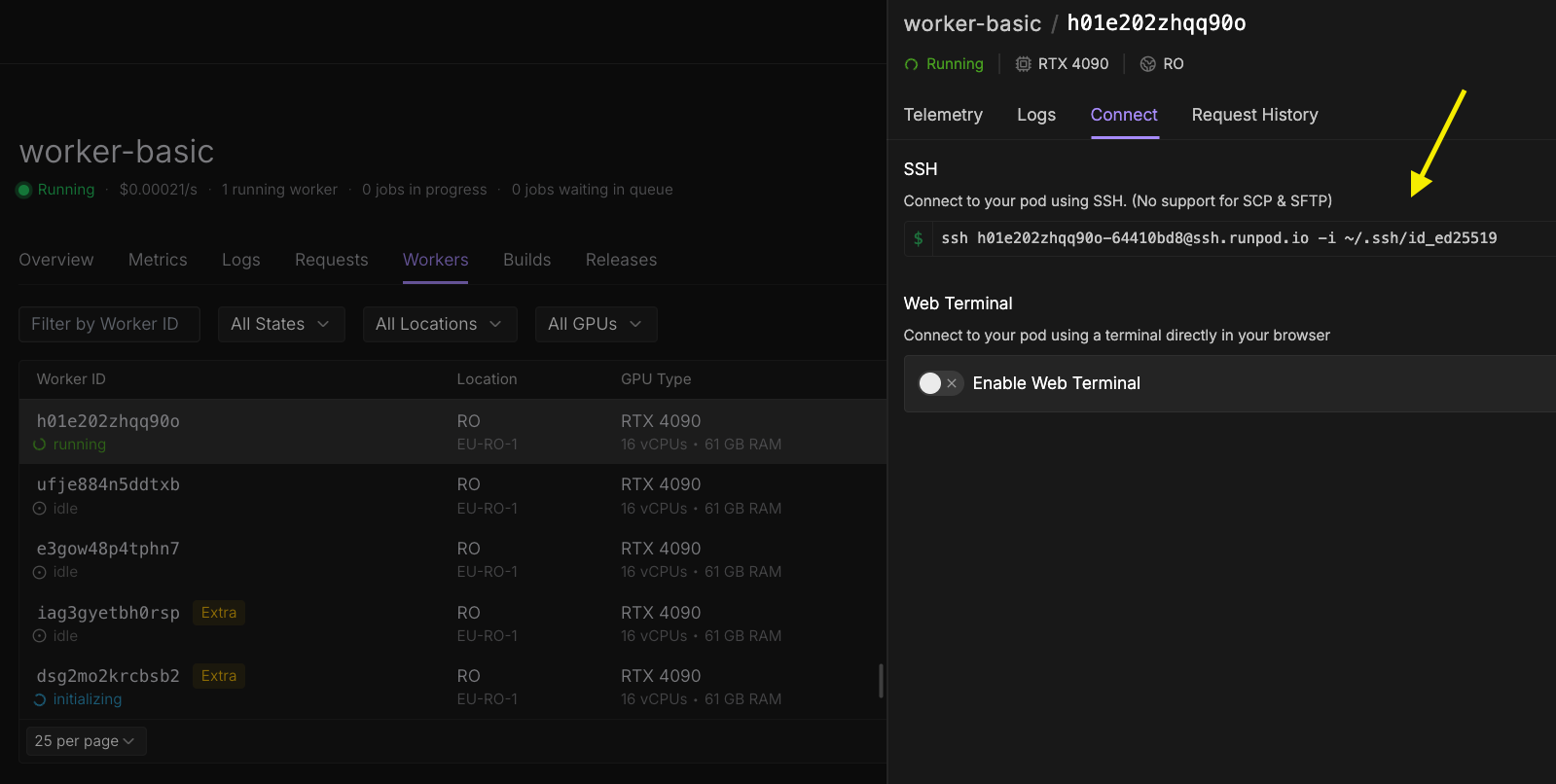 In the worker's detail pane:
1. Select the **Connect** tab.
2. Under the **SSH** section, copy the provided SSH command.
The command will look similar to this:
```bash theme={"theme":{"light":"github-light","dark":"github-dark"}}
ssh root@worker-id-xyz -i ~/.ssh/id_ed25519
```
If you saved your SSH key to a custom location, update the path after the `-i` flag to match your key's location.
Open your local terminal and paste the SSH command you copied. Press Enter to connect to the worker.
Once connected, you can:
* Inspect logs and debug output.
* Check environment variables with `env`.
* Verify file systems and mounted volumes.
* Test your worker's behavior in the production environment.
* Run diagnostic commands to troubleshoot issues.
## Troubleshooting SSH key authentication
If you're asked for a password when connecting to your worker via SSH, this means something is not set up correctly. Runpod does not require a password for SSH connections, as authentication is handled entirely through your SSH key pair.
Here are some common reasons why this might happen:
* If you copy and paste the key *fingerprint* (which starts with `SHA256:`) into your Runpod user settings instead of the actual public key (the contents of your `id_ed25519.pub` file), authentication will fail.
* If you omit the encryption type at the beginning of your public key when pasting it into your Runpod user settings (for example, leaving out `ssh-ed25519`), the key will not be recognized.
* If you add multiple public keys to your Runpod user settings but do not separate them with a newline, only the first key will work. Each key must be on its own line.
* If you specify the wrong file path to your private key when connecting, SSH will not be able to find the correct key (`No such file or directory` error).
* If your private key file is accessible by other users on your machine, SSH may refuse to use it for security reasons (`bad permissions` error).
* If your SSH configuration file (`~/.ssh/config`) points to the wrong private key, you will also be prompted for a password. Make sure the `IdentityFile` entry in your config file matches the private key that corresponds to the public key you added to your Runpod account.
In the worker's detail pane:
1. Select the **Connect** tab.
2. Under the **SSH** section, copy the provided SSH command.
The command will look similar to this:
```bash theme={"theme":{"light":"github-light","dark":"github-dark"}}
ssh root@worker-id-xyz -i ~/.ssh/id_ed25519
```
If you saved your SSH key to a custom location, update the path after the `-i` flag to match your key's location.
Open your local terminal and paste the SSH command you copied. Press Enter to connect to the worker.
Once connected, you can:
* Inspect logs and debug output.
* Check environment variables with `env`.
* Verify file systems and mounted volumes.
* Test your worker's behavior in the production environment.
* Run diagnostic commands to troubleshoot issues.
## Troubleshooting SSH key authentication
If you're asked for a password when connecting to your worker via SSH, this means something is not set up correctly. Runpod does not require a password for SSH connections, as authentication is handled entirely through your SSH key pair.
Here are some common reasons why this might happen:
* If you copy and paste the key *fingerprint* (which starts with `SHA256:`) into your Runpod user settings instead of the actual public key (the contents of your `id_ed25519.pub` file), authentication will fail.
* If you omit the encryption type at the beginning of your public key when pasting it into your Runpod user settings (for example, leaving out `ssh-ed25519`), the key will not be recognized.
* If you add multiple public keys to your Runpod user settings but do not separate them with a newline, only the first key will work. Each key must be on its own line.
* If you specify the wrong file path to your private key when connecting, SSH will not be able to find the correct key (`No such file or directory` error).
* If your private key file is accessible by other users on your machine, SSH may refuse to use it for security reasons (`bad permissions` error).
* If your SSH configuration file (`~/.ssh/config`) points to the wrong private key, you will also be prompted for a password. Make sure the `IdentityFile` entry in your config file matches the private key that corresponds to the public key you added to your Runpod account.