> ## Documentation Index
> Fetch the complete documentation index at: https://docs.runpod.io/llms.txt
> Use this file to discover all available pages before exploring further.
# Make API requests
> Use the playground, REST API, and SDKs to interact with Public Endpoints.
This guide covers all the ways to interact with Public Endpoints, from testing in the browser to integrating with your applications.
## Requirements
* A [Runpod account](/get-started/manage-accounts) with credits
* A [Runpod API key](/get-started/api-keys) for making API requests
## Use the playground
The Public Endpoint playground lets you test models directly in your browser before writing any code.
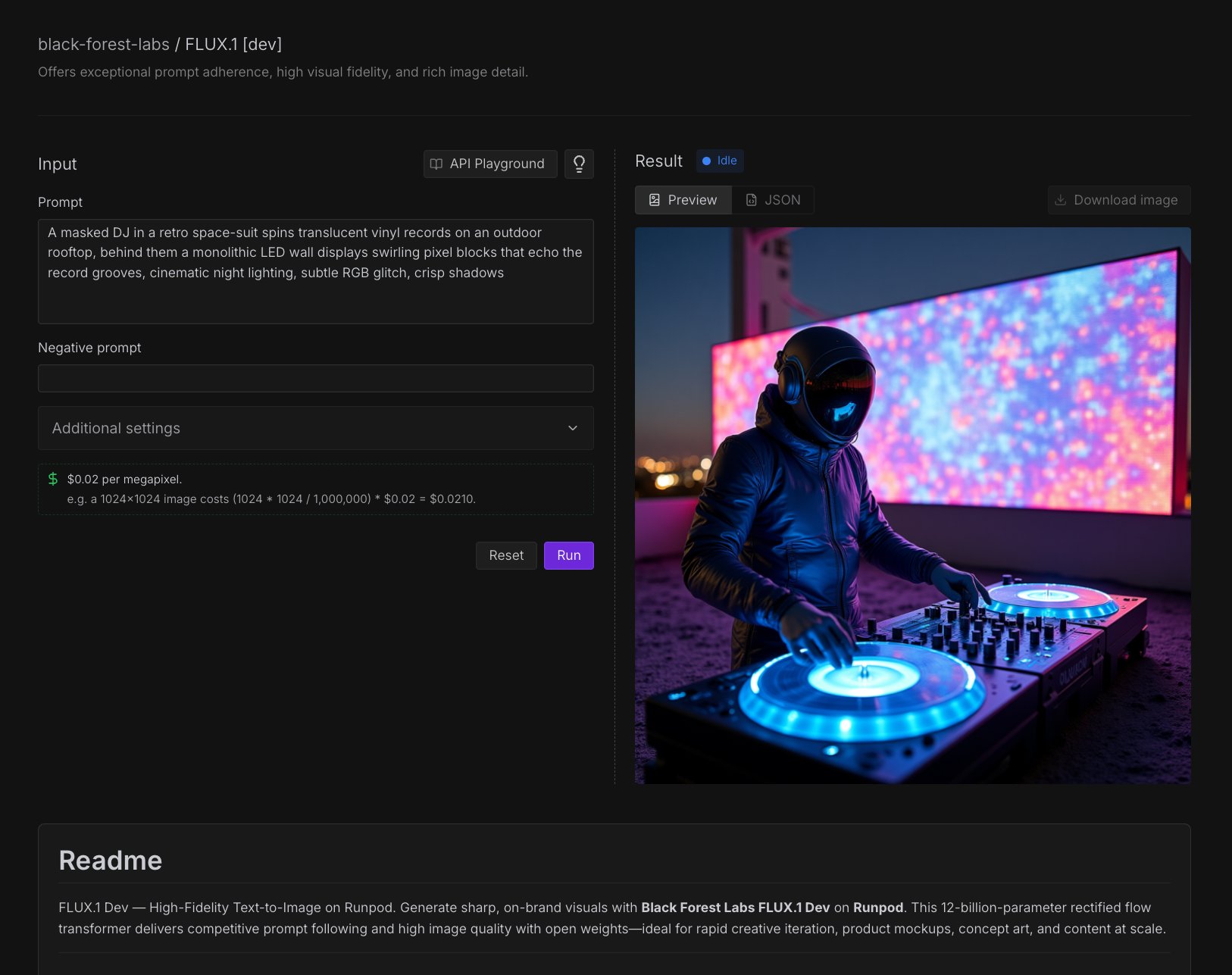 The playground offers:
* **Interactive parameter adjustment**: Modify prompts, dimensions, and model settings in real-time.
* **Instant preview**: Generate images directly in the browser.
* **Cost estimation**: See estimated costs before running generation.
* **API code generation**: Create working code examples for your applications.
### Access the playground
1. Navigate to the [Runpod Hub](https://www.runpod.io/console/hub) in the console.
2. Select the **Public Endpoints** section.
3. Browse the available models and select one that fits your needs.
### Test a model
1. Select a model from the [Runpod Hub](https://www.console.runpod.io/hub).
2. Under **Input**, enter a prompt in the text box.
3. Enter a negative prompt if needed. Negative prompts tell the model what to exclude from the output.
4. Under **Additional settings**, you can adjust the seed, aspect ratio, number of inference steps, guidance scale, and output format.
5. Click **Run** to start generating.
Under **Result**, you can use the dropdown menu to show either a preview of the output, or the raw JSON.
### Generate code from the playground
The playground offers:
* **Interactive parameter adjustment**: Modify prompts, dimensions, and model settings in real-time.
* **Instant preview**: Generate images directly in the browser.
* **Cost estimation**: See estimated costs before running generation.
* **API code generation**: Create working code examples for your applications.
### Access the playground
1. Navigate to the [Runpod Hub](https://www.runpod.io/console/hub) in the console.
2. Select the **Public Endpoints** section.
3. Browse the available models and select one that fits your needs.
### Test a model
1. Select a model from the [Runpod Hub](https://www.console.runpod.io/hub).
2. Under **Input**, enter a prompt in the text box.
3. Enter a negative prompt if needed. Negative prompts tell the model what to exclude from the output.
4. Under **Additional settings**, you can adjust the seed, aspect ratio, number of inference steps, guidance scale, and output format.
5. Click **Run** to start generating.
Under **Result**, you can use the dropdown menu to show either a preview of the output, or the raw JSON.
### Generate code from the playground
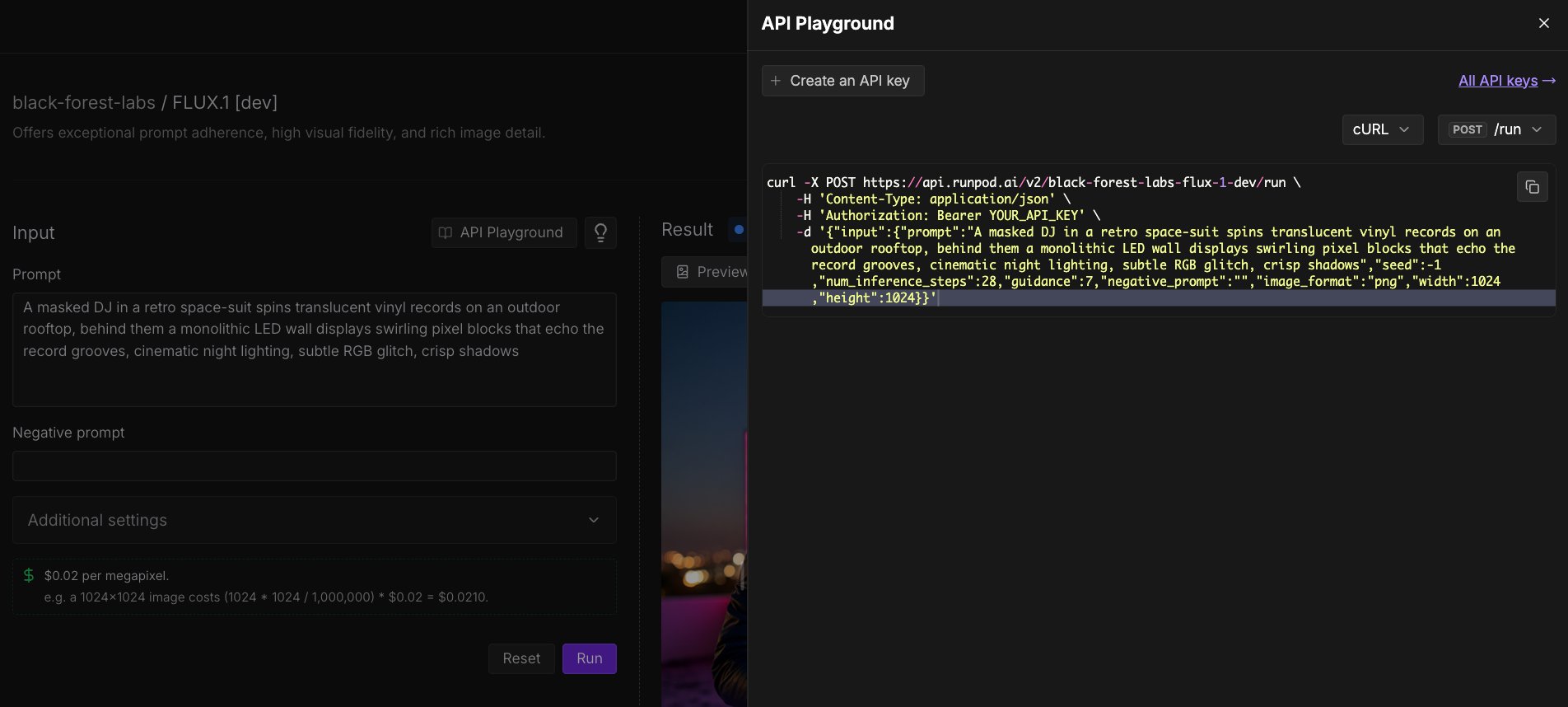 After testing a model in the playground, you can automatically generate an API request to use in your application.
1. Click **API** (above the **Prompt** field).
2. Using the dropdown menus on the right, select the programming language (Python, JavaScript, cURL, etc.) and POST command you want to use (`/run` or `/runsync`).
3. Click the **Copy** icon to copy the code to your clipboard.
## Make API requests
You can make API requests to Public Endpoints using any HTTP client. All requests require authentication using your Runpod API key, passed in the `Authorization` header.
### Synchronous requests
Synchronous requests (`/runsync`) wait for the model to finish processing and return the result directly. Use these for quick generations where you want an immediate response.
```bash theme={"theme":{"light":"github-light","dark":"github-dark"}}
curl -X POST "https://api.runpod.ai/v2/black-forest-labs-flux-1-dev/runsync" \
-H "Authorization: Bearer YOUR_API_KEY" \
-H "Content-Type: application/json" \
-d '{
"input": {
"prompt": "A serene mountain landscape at sunset",
"width": 1024,
"height": 1024,
"num_inference_steps": 20,
"guidance": 7.5
}
}'
```
```python theme={"theme":{"light":"github-light","dark":"github-dark"}}
import requests
response = requests.post(
"https://api.runpod.ai/v2/black-forest-labs-flux-1-dev/runsync",
headers={
"Authorization": "Bearer YOUR_API_KEY",
"Content-Type": "application/json",
},
json={
"input": {
"prompt": "A serene mountain landscape at sunset",
"width": 1024,
"height": 1024,
"num_inference_steps": 20,
"guidance": 7.5,
}
},
)
result = response.json()
print(result["output"]["image_url"])
```
```javascript theme={"theme":{"light":"github-light","dark":"github-dark"}}
async function generateImage() {
const response = await fetch(
"https://api.runpod.ai/v2/black-forest-labs-flux-1-dev/runsync",
{
method: "POST",
headers: {
"Authorization": "Bearer YOUR_API_KEY",
"Content-Type": "application/json",
},
body: JSON.stringify({
input: {
prompt: "A serene mountain landscape at sunset",
width: 1024,
height: 1024,
num_inference_steps: 20,
guidance: 7.5,
},
}),
}
);
const result = await response.json();
console.log(result.output.image_url);
return result;
}
generateImage();
```
### Asynchronous requests
Asynchronous requests (`/run`) return immediately with a job ID. Use these for longer generations or when you want to queue multiple requests.
```bash theme={"theme":{"light":"github-light","dark":"github-dark"}}
curl -X POST "https://api.runpod.ai/v2/black-forest-labs-flux-1-dev/run" \
-H "Authorization: Bearer YOUR_API_KEY" \
-H "Content-Type: application/json" \
-d '{
"input": {
"prompt": "A futuristic cityscape with flying cars",
"width": 1024,
"height": 1024,
"num_inference_steps": 50,
"guidance": 8.0
}
}'
```
```python theme={"theme":{"light":"github-light","dark":"github-dark"}}
import requests
response = requests.post(
"https://api.runpod.ai/v2/black-forest-labs-flux-1-dev/run",
headers={
"Authorization": "Bearer YOUR_API_KEY",
"Content-Type": "application/json",
},
json={
"input": {
"prompt": "A futuristic cityscape with flying cars",
"width": 1024,
"height": 1024,
"num_inference_steps": 50,
"guidance": 8.0,
}
},
)
result = response.json()
job_id = result["id"]
print(f"Job submitted: {job_id}")
```
```javascript theme={"theme":{"light":"github-light","dark":"github-dark"}}
async function submitJob() {
const response = await fetch(
"https://api.runpod.ai/v2/black-forest-labs-flux-1-dev/run",
{
method: "POST",
headers: {
"Authorization": "Bearer YOUR_API_KEY",
"Content-Type": "application/json",
},
body: JSON.stringify({
input: {
prompt: "A futuristic cityscape with flying cars",
width: 1024,
height: 1024,
num_inference_steps: 50,
guidance: 8.0,
},
}),
}
);
const result = await response.json();
console.log(`Job submitted: ${result.id}`);
return result;
}
submitJob();
```
### Check job status
After submitting an asynchronous request, use the `/status` endpoint to check progress and retrieve results. Replace `JOB_ID` with the job ID returned from the `/run` request.
```bash theme={"theme":{"light":"github-light","dark":"github-dark"}}
curl -X GET "https://api.runpod.ai/v2/black-forest-labs-flux-1-dev/status/JOB_ID" \
-H "Authorization: Bearer YOUR_API_KEY"
```
```python theme={"theme":{"light":"github-light","dark":"github-dark"}}
import requests
import time
job_id = "your-job-id"
while True:
response = requests.get(
f"https://api.runpod.ai/v2/black-forest-labs-flux-1-dev/status/{job_id}",
headers={"Authorization": "Bearer YOUR_API_KEY"},
)
result = response.json()
status = result["status"]
if status == "COMPLETED":
print(result["output"]["image_url"])
break
elif status == "FAILED":
print(f"Job failed: {result}")
break
else:
print(f"Status: {status}, waiting...")
time.sleep(2)
```
```javascript theme={"theme":{"light":"github-light","dark":"github-dark"}}
async function checkStatus(jobId) {
while (true) {
const response = await fetch(
`https://api.runpod.ai/v2/black-forest-labs-flux-1-dev/status/${jobId}`,
{
headers: {
"Authorization": "Bearer YOUR_API_KEY",
},
}
);
const result = await response.json();
if (result.status === "COMPLETED") {
console.log(result.output.image_url);
return result;
} else if (result.status === "FAILED") {
throw new Error(`Job failed: ${JSON.stringify(result)}`);
}
console.log(`Status: ${result.status}, waiting...`);
await new Promise((resolve) => setTimeout(resolve, 2000));
}
}
checkStatus("your-job-id");
```
### Response format
All endpoints return a consistent JSON response format:
```json theme={"theme":{"light":"github-light","dark":"github-dark"}}
{
"delayTime": 17,
"executionTime": 3986,
"id": "sync-0965434e-ff63-4a1c-a9f9-5b705f66e176-u2",
"output": {
"cost": 0.02097152,
"image_url": "https://image.runpod.ai/..."
},
"status": "COMPLETED",
"workerId": "oqk7ao1uomckye"
}
```
Output URLs (`image_url`, `video_url`, and `audio_url`) expire after 7 days. Download and store your generated files immediately if you need to keep them longer.
## Vercel AI SDK
For JavaScript and TypeScript projects, you can use the `@runpod/ai-sdk-provider` package to integrate Public Endpoints with the [Vercel AI SDK](https://ai-sdk.dev/docs/introduction). This provides a streamlined, type-safe interface for text generation, streaming, and image generation.
See the [Vercel AI SDK guide](/public-endpoints/ai-sdk) for installation, configuration, and usage examples.
## Best practices
### Prompt engineering
* **Be specific**: Detailed prompts generally produce better results.
* **Include style modifiers**: Specify art styles, camera angles, or lighting conditions.
A good prompt example: "A professional portrait of a woman in business attire, studio lighting, high quality, detailed, corporate headshot style."
### Performance optimization
* **Choose the right model**: Use smaller, cheaper models (e.g. [Flux Schnell](/public-endpoints/models/flux-schnell)) for testing and development, and more powerful models (e.g. [Flux Dev](/public-endpoints/models/flux-dev)) for production.
* **Batch with async**: For multiple images, use `/run` to queue requests.
* **Cache results**: Store generated images to avoid regenerating identical prompts.
## Next steps
* [Model reference](/public-endpoints/reference): View all available models and their parameters.
* [Connect AI coding tools](/public-endpoints/ai-coding-tools): Configure Cursor, Cline, and OpenCode with Public Endpoints.
* [Build a text-to-video pipeline](/tutorials/public-endpoints/text-to-video-pipeline): Chain multiple endpoints to generate videos from text prompts.
* [Build custom endpoints](/serverless/overview): Deploy your own models with Runpod Serverless.
After testing a model in the playground, you can automatically generate an API request to use in your application.
1. Click **API** (above the **Prompt** field).
2. Using the dropdown menus on the right, select the programming language (Python, JavaScript, cURL, etc.) and POST command you want to use (`/run` or `/runsync`).
3. Click the **Copy** icon to copy the code to your clipboard.
## Make API requests
You can make API requests to Public Endpoints using any HTTP client. All requests require authentication using your Runpod API key, passed in the `Authorization` header.
### Synchronous requests
Synchronous requests (`/runsync`) wait for the model to finish processing and return the result directly. Use these for quick generations where you want an immediate response.
```bash theme={"theme":{"light":"github-light","dark":"github-dark"}}
curl -X POST "https://api.runpod.ai/v2/black-forest-labs-flux-1-dev/runsync" \
-H "Authorization: Bearer YOUR_API_KEY" \
-H "Content-Type: application/json" \
-d '{
"input": {
"prompt": "A serene mountain landscape at sunset",
"width": 1024,
"height": 1024,
"num_inference_steps": 20,
"guidance": 7.5
}
}'
```
```python theme={"theme":{"light":"github-light","dark":"github-dark"}}
import requests
response = requests.post(
"https://api.runpod.ai/v2/black-forest-labs-flux-1-dev/runsync",
headers={
"Authorization": "Bearer YOUR_API_KEY",
"Content-Type": "application/json",
},
json={
"input": {
"prompt": "A serene mountain landscape at sunset",
"width": 1024,
"height": 1024,
"num_inference_steps": 20,
"guidance": 7.5,
}
},
)
result = response.json()
print(result["output"]["image_url"])
```
```javascript theme={"theme":{"light":"github-light","dark":"github-dark"}}
async function generateImage() {
const response = await fetch(
"https://api.runpod.ai/v2/black-forest-labs-flux-1-dev/runsync",
{
method: "POST",
headers: {
"Authorization": "Bearer YOUR_API_KEY",
"Content-Type": "application/json",
},
body: JSON.stringify({
input: {
prompt: "A serene mountain landscape at sunset",
width: 1024,
height: 1024,
num_inference_steps: 20,
guidance: 7.5,
},
}),
}
);
const result = await response.json();
console.log(result.output.image_url);
return result;
}
generateImage();
```
### Asynchronous requests
Asynchronous requests (`/run`) return immediately with a job ID. Use these for longer generations or when you want to queue multiple requests.
```bash theme={"theme":{"light":"github-light","dark":"github-dark"}}
curl -X POST "https://api.runpod.ai/v2/black-forest-labs-flux-1-dev/run" \
-H "Authorization: Bearer YOUR_API_KEY" \
-H "Content-Type: application/json" \
-d '{
"input": {
"prompt": "A futuristic cityscape with flying cars",
"width": 1024,
"height": 1024,
"num_inference_steps": 50,
"guidance": 8.0
}
}'
```
```python theme={"theme":{"light":"github-light","dark":"github-dark"}}
import requests
response = requests.post(
"https://api.runpod.ai/v2/black-forest-labs-flux-1-dev/run",
headers={
"Authorization": "Bearer YOUR_API_KEY",
"Content-Type": "application/json",
},
json={
"input": {
"prompt": "A futuristic cityscape with flying cars",
"width": 1024,
"height": 1024,
"num_inference_steps": 50,
"guidance": 8.0,
}
},
)
result = response.json()
job_id = result["id"]
print(f"Job submitted: {job_id}")
```
```javascript theme={"theme":{"light":"github-light","dark":"github-dark"}}
async function submitJob() {
const response = await fetch(
"https://api.runpod.ai/v2/black-forest-labs-flux-1-dev/run",
{
method: "POST",
headers: {
"Authorization": "Bearer YOUR_API_KEY",
"Content-Type": "application/json",
},
body: JSON.stringify({
input: {
prompt: "A futuristic cityscape with flying cars",
width: 1024,
height: 1024,
num_inference_steps: 50,
guidance: 8.0,
},
}),
}
);
const result = await response.json();
console.log(`Job submitted: ${result.id}`);
return result;
}
submitJob();
```
### Check job status
After submitting an asynchronous request, use the `/status` endpoint to check progress and retrieve results. Replace `JOB_ID` with the job ID returned from the `/run` request.
```bash theme={"theme":{"light":"github-light","dark":"github-dark"}}
curl -X GET "https://api.runpod.ai/v2/black-forest-labs-flux-1-dev/status/JOB_ID" \
-H "Authorization: Bearer YOUR_API_KEY"
```
```python theme={"theme":{"light":"github-light","dark":"github-dark"}}
import requests
import time
job_id = "your-job-id"
while True:
response = requests.get(
f"https://api.runpod.ai/v2/black-forest-labs-flux-1-dev/status/{job_id}",
headers={"Authorization": "Bearer YOUR_API_KEY"},
)
result = response.json()
status = result["status"]
if status == "COMPLETED":
print(result["output"]["image_url"])
break
elif status == "FAILED":
print(f"Job failed: {result}")
break
else:
print(f"Status: {status}, waiting...")
time.sleep(2)
```
```javascript theme={"theme":{"light":"github-light","dark":"github-dark"}}
async function checkStatus(jobId) {
while (true) {
const response = await fetch(
`https://api.runpod.ai/v2/black-forest-labs-flux-1-dev/status/${jobId}`,
{
headers: {
"Authorization": "Bearer YOUR_API_KEY",
},
}
);
const result = await response.json();
if (result.status === "COMPLETED") {
console.log(result.output.image_url);
return result;
} else if (result.status === "FAILED") {
throw new Error(`Job failed: ${JSON.stringify(result)}`);
}
console.log(`Status: ${result.status}, waiting...`);
await new Promise((resolve) => setTimeout(resolve, 2000));
}
}
checkStatus("your-job-id");
```
### Response format
All endpoints return a consistent JSON response format:
```json theme={"theme":{"light":"github-light","dark":"github-dark"}}
{
"delayTime": 17,
"executionTime": 3986,
"id": "sync-0965434e-ff63-4a1c-a9f9-5b705f66e176-u2",
"output": {
"cost": 0.02097152,
"image_url": "https://image.runpod.ai/..."
},
"status": "COMPLETED",
"workerId": "oqk7ao1uomckye"
}
```
Output URLs (`image_url`, `video_url`, and `audio_url`) expire after 7 days. Download and store your generated files immediately if you need to keep them longer.
## Vercel AI SDK
For JavaScript and TypeScript projects, you can use the `@runpod/ai-sdk-provider` package to integrate Public Endpoints with the [Vercel AI SDK](https://ai-sdk.dev/docs/introduction). This provides a streamlined, type-safe interface for text generation, streaming, and image generation.
See the [Vercel AI SDK guide](/public-endpoints/ai-sdk) for installation, configuration, and usage examples.
## Best practices
### Prompt engineering
* **Be specific**: Detailed prompts generally produce better results.
* **Include style modifiers**: Specify art styles, camera angles, or lighting conditions.
A good prompt example: "A professional portrait of a woman in business attire, studio lighting, high quality, detailed, corporate headshot style."
### Performance optimization
* **Choose the right model**: Use smaller, cheaper models (e.g. [Flux Schnell](/public-endpoints/models/flux-schnell)) for testing and development, and more powerful models (e.g. [Flux Dev](/public-endpoints/models/flux-dev)) for production.
* **Batch with async**: For multiple images, use `/run` to queue requests.
* **Cache results**: Store generated images to avoid regenerating identical prompts.
## Next steps
* [Model reference](/public-endpoints/reference): View all available models and their parameters.
* [Connect AI coding tools](/public-endpoints/ai-coding-tools): Configure Cursor, Cline, and OpenCode with Public Endpoints.
* [Build a text-to-video pipeline](/tutorials/public-endpoints/text-to-video-pipeline): Chain multiple endpoints to generate videos from text prompts.
* [Build custom endpoints](/serverless/overview): Deploy your own models with Runpod Serverless.