> ## Documentation Index
> Fetch the complete documentation index at: https://docs.runpod.io/llms.txt
> Use this file to discover all available pages before exploring further.
# JupyterLab server token authentication
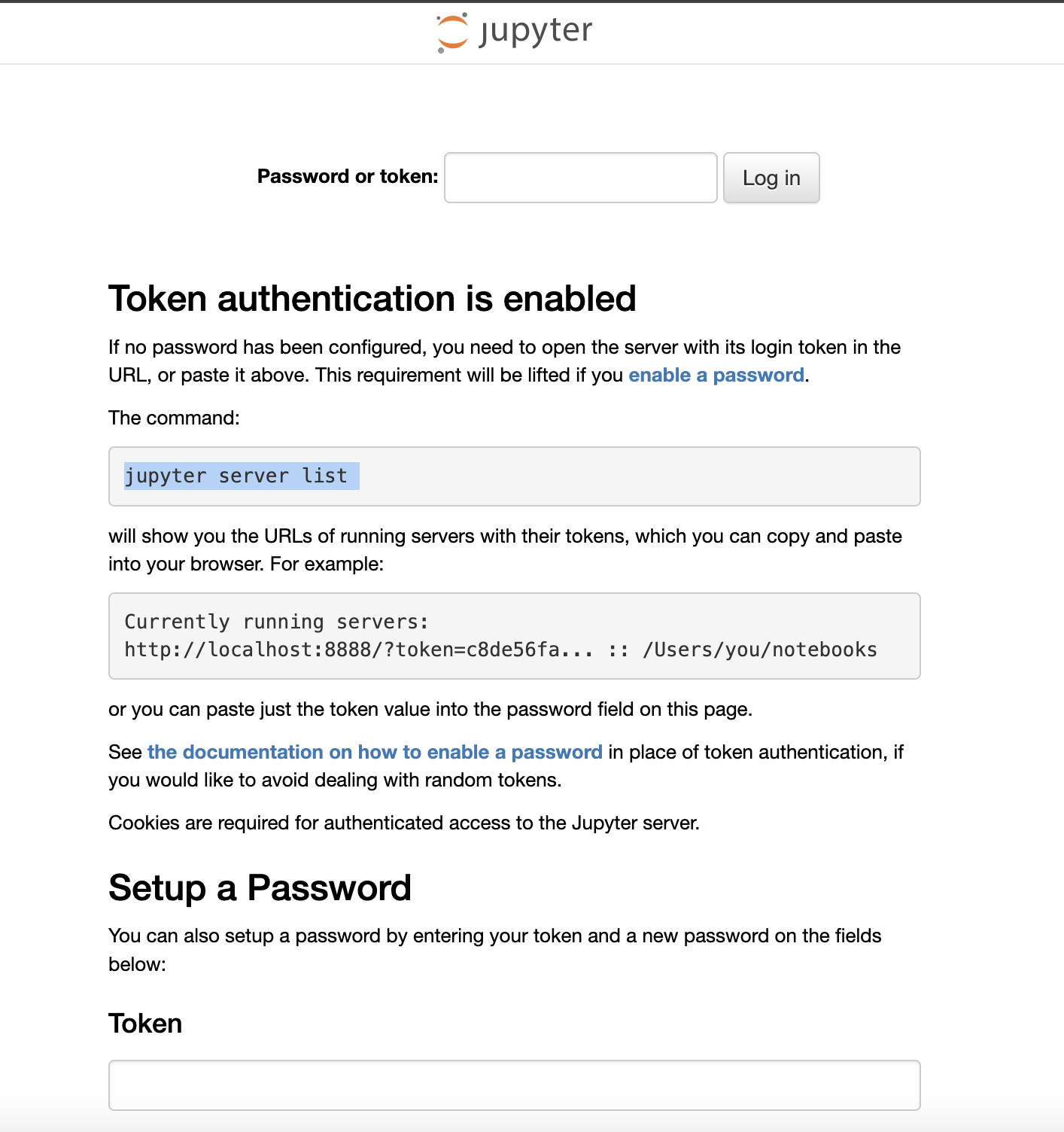
If you see a "Token authentication is enabled" screen when trying to access your Pod's JupyterLab server, follow the steps below to log in.
 1. Go to the Pod page in the Runpod console and click the **Connect** button for the Pod you want to access.
2. Look for the **Web Terminal** start button.
3. Click **Start**, then open the web terminal.
4. In the terminal, run the following command to get the JupyterLab server token:
```
jupyter server list
```
You should see output similar to this:
```bash theme={"theme":{"light":"github-light","dark":"github-dark"}}
root@2779b5db68b8:/# jupyter server list
Currently running servers:
http://localhost:8888/?token=ua5nw5fwkdzseqpp5apj :: /
root@2779b5db68b8:/#
```
The token you need is the string of characters that appears after the `=` sign, such as `ua5nw5fwkdzseqpp5apj` in the example above.
Copy this token, return to your JupyterLab login page, and paste it into the **Token** field to sign in.
1. Go to the Pod page in the Runpod console and click the **Connect** button for the Pod you want to access.
2. Look for the **Web Terminal** start button.
3. Click **Start**, then open the web terminal.
4. In the terminal, run the following command to get the JupyterLab server token:
```
jupyter server list
```
You should see output similar to this:
```bash theme={"theme":{"light":"github-light","dark":"github-dark"}}
root@2779b5db68b8:/# jupyter server list
Currently running servers:
http://localhost:8888/?token=ua5nw5fwkdzseqpp5apj :: /
root@2779b5db68b8:/#
```
The token you need is the string of characters that appears after the `=` sign, such as `ua5nw5fwkdzseqpp5apj` in the example above.
Copy this token, return to your JupyterLab login page, and paste it into the **Token** field to sign in.