> ## Documentation Index
> Fetch the complete documentation index at: https://docs.runpod.io/llms.txt
> Use this file to discover all available pages before exploring further.
# OhMyRunpod
> Community solution for easy (SFTP) setup on Runpod
## What is OhMyRunpod?
OhMyRunpod is a Python package that solves one of the most common Runpod user challenges: **easily transferring files to and from your Pod**.
While OhMyRunpod includes various features, **the SFTP setup functionality** is the one we want to highlight to help get you started with file transfer software such as FileZilla or similar tools.
Check the repository for additional features, updates, and documentation: [github.com/kodxana/OhMyRunpod-python](https://github.com/kodxana/OhMyRunpod-python)
## Key features
Simplified file transfer between your local machine and Runpod instances using SFTP or Croc
Automatically configures SSH access with secure key generation and password management
## Requirements
Before getting started with OhMyRunpod, make sure you have:
* An active Runpod account with a running Pod.
* Python 3.6 or higher installed on your local machine.
* Port 22 exposed in your Pod's TCP ports configuration (for SFTP transfers).
## Installation
Install OhMyRunpod using pip:
```bash theme={"theme":{"light":"github-light","dark":"github-dark"}}
pip install OhMyRunpod
```
## Quick start: file transfer
The most common use case for OhMyRunpod is transferring files between your local machine and Runpod instances.
Before starting, make sure port 22 is exposed in your Pod. This is required for SFTP transfers.
To expose port 22:
1. Go to your Pod in the Runpod console
2. Click **Edit Pod**
3. Under the **TCP Ports** section, add port `22`
4. Save the changes
**Data loss warning**: Changing TCP ports will restart your pod and **erase all data outside of `/workspace`**. Ensure all important files are in `/workspace` (the default persistent directory) before making port changes.
Execute the file transfer command:
```bash theme={"theme":{"light":"github-light","dark":"github-dark"}}
OhMyRunpod --file-transfer
```
You'll be presented with transfer options:
 * **Croc**: Easy peer-to-peer file transfer (recommended for quick transfers)
* **SFTP**: Traditional file transfer via SSH/SFTP clients (recommended for persistent connections)
Use arrow keys to navigate and Enter to select.
If you choose SFTP, OhMyRunpod will automatically:
* Install and configure SSH server
* Set up SSH keys
* Generate a secure password
* Create connection scripts for your operating system
* **Croc**: Easy peer-to-peer file transfer (recommended for quick transfers)
* **SFTP**: Traditional file transfer via SSH/SFTP clients (recommended for persistent connections)
Use arrow keys to navigate and Enter to select.
If you choose SFTP, OhMyRunpod will automatically:
* Install and configure SSH server
* Set up SSH keys
* Generate a secure password
* Create connection scripts for your operating system
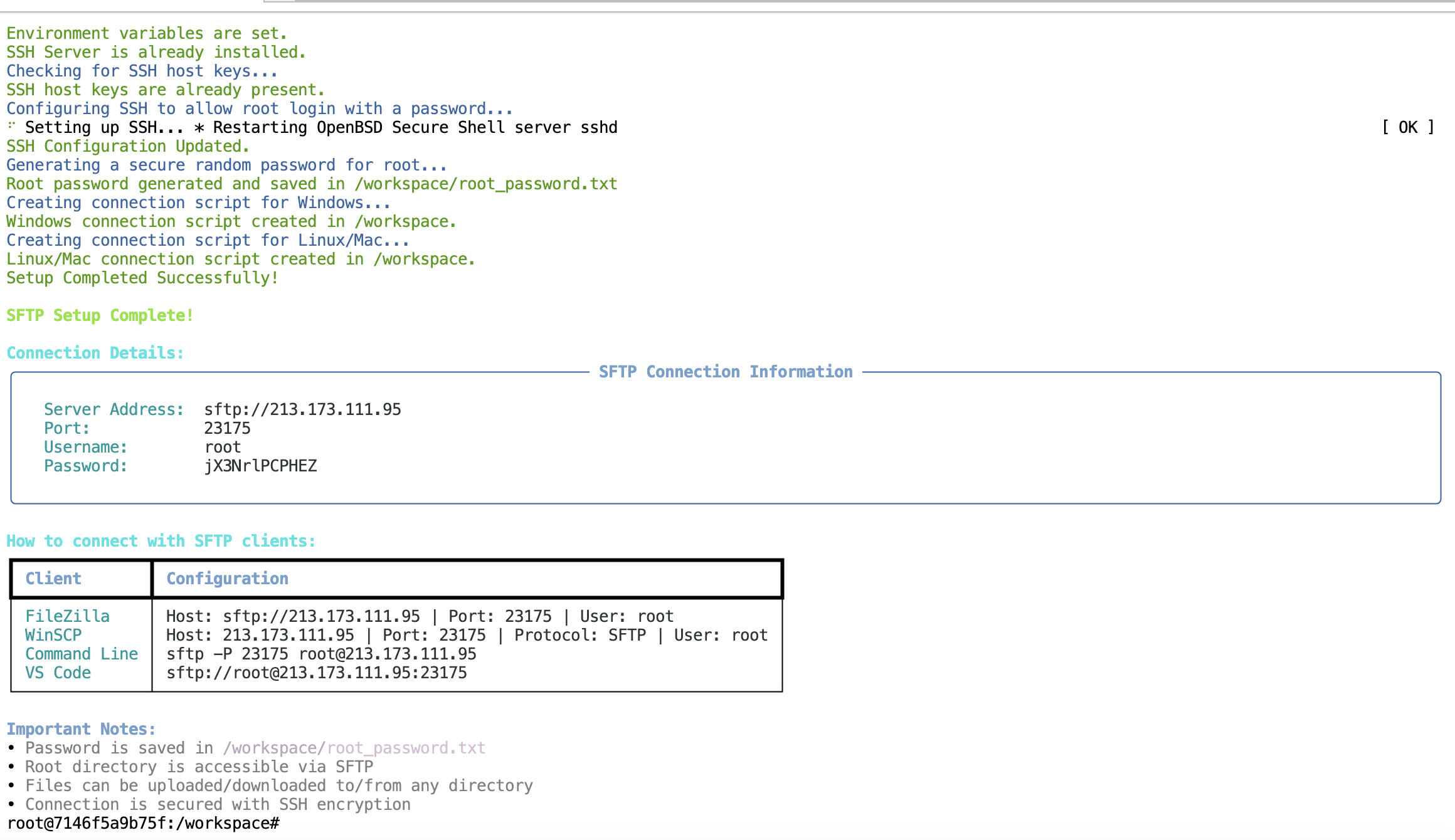 The tool provides:
* Complete connection information (server address, port, username, password)
* Platform-specific connection instructions for FileZilla, WinSCP, Command Line, and VS Code
* Password saved to `/workspace/root_password.txt` for reference
## What can you do after setup?
Once SFTP is configured, you can:
* **Upload datasets**: Transfer training data directly to `/workspace/`
* **Download models**: Pull trained checkpoints back to your local machine
* **Sync code**: Use VS Code Remote-SSH for live editing
* **Backup files**: Regular backups of important work
* **Use any SFTP client**: FileZilla, WinSCP, or command line tools
## Troubleshooting
**Problem:** Cannot connect via SFTP, getting "Connection refused" error
**Solution:**
1. Ensure port 22 is exposed in your Pod (Pod > Edit Pod > TCP Ports > Add 22)
2. Restart your Pod after adding the port
3. Re-run `OhMyRunpod --file-transfer` to reconfigure SSH
**Problem:** Getting "Permission denied" when trying to connect via SFTP
**Solution:**
1. Check that you're using the correct password from `/workspace/root_password.txt`
2. Ensure you're using username `root`
3. Verify the port number matches what's shown in the connection details
**Problem:** SFTP client cannot resolve the host address
**Solution:**
1. Verify your Pod is running and not stopped
2. Check that you're using the correct IP address and port from the connection details
3. Ensure your network allows outbound connections to the Runpod IP range
## Tips
* The password is automatically saved to `/workspace/root_password.txt` for your reference.
* For large file transfers, use a dedicated SFTP client like FileZilla or WinSCP instead of the command line.
## More community solutions
Have a tool that solves common Runpod problems? Community contributions are welcome! Share your solutions in the [Runpod Discord](https://discord.gg/runpod) community.
## Related Runpod documentation
* [SSH Configuration Guide](/pods/configuration/use-ssh)
* [Managing Pods](/pods/manage-pods)
* [Connecting to Pods](/pods/connect-to-a-pod)
The tool provides:
* Complete connection information (server address, port, username, password)
* Platform-specific connection instructions for FileZilla, WinSCP, Command Line, and VS Code
* Password saved to `/workspace/root_password.txt` for reference
## What can you do after setup?
Once SFTP is configured, you can:
* **Upload datasets**: Transfer training data directly to `/workspace/`
* **Download models**: Pull trained checkpoints back to your local machine
* **Sync code**: Use VS Code Remote-SSH for live editing
* **Backup files**: Regular backups of important work
* **Use any SFTP client**: FileZilla, WinSCP, or command line tools
## Troubleshooting
**Problem:** Cannot connect via SFTP, getting "Connection refused" error
**Solution:**
1. Ensure port 22 is exposed in your Pod (Pod > Edit Pod > TCP Ports > Add 22)
2. Restart your Pod after adding the port
3. Re-run `OhMyRunpod --file-transfer` to reconfigure SSH
**Problem:** Getting "Permission denied" when trying to connect via SFTP
**Solution:**
1. Check that you're using the correct password from `/workspace/root_password.txt`
2. Ensure you're using username `root`
3. Verify the port number matches what's shown in the connection details
**Problem:** SFTP client cannot resolve the host address
**Solution:**
1. Verify your Pod is running and not stopped
2. Check that you're using the correct IP address and port from the connection details
3. Ensure your network allows outbound connections to the Runpod IP range
## Tips
* The password is automatically saved to `/workspace/root_password.txt` for your reference.
* For large file transfers, use a dedicated SFTP client like FileZilla or WinSCP instead of the command line.
## More community solutions
Have a tool that solves common Runpod problems? Community contributions are welcome! Share your solutions in the [Runpod Discord](https://discord.gg/runpod) community.
## Related Runpod documentation
* [SSH Configuration Guide](/pods/configuration/use-ssh)
* [Managing Pods](/pods/manage-pods)
* [Connecting to Pods](/pods/connect-to-a-pod)